
11 Powerful Functions in One Smart Repair Tool
Fully Automatic Operation | Real-Time Voltage & Current Monitoring | iPhone, iPad & Samsung Support
1. Product Overview
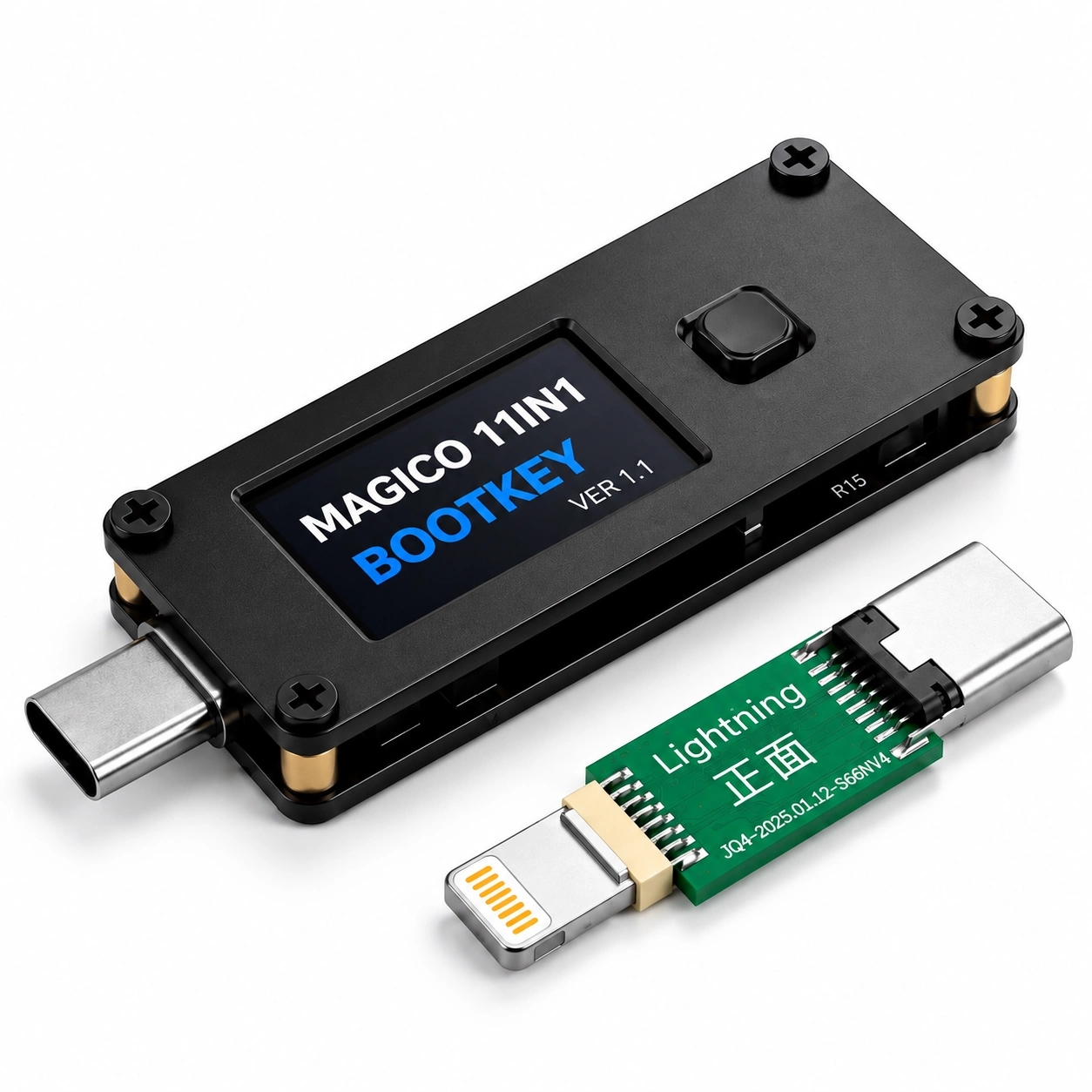
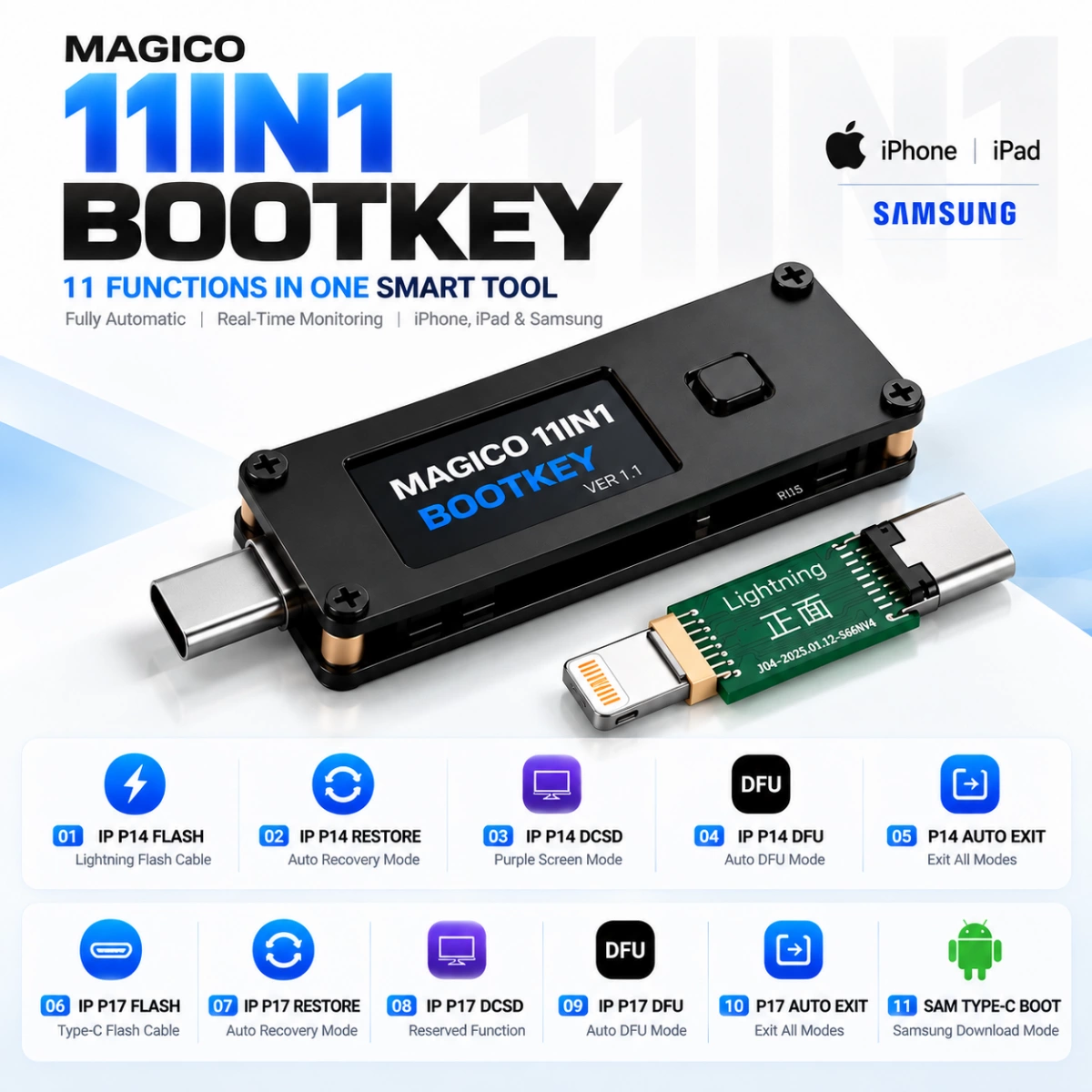
The MAGICO 11IN1 BootKey is a professional multifunctional repair and diagnostic tool designed for iPhone, iPad, and Samsung USB Type-C devices.
Integrating 11 essential functions into one compact device, it supports firmware flashing, automatic Recovery Mode, automatic DFU Mode, DCSD Purple Screen Mode, automatic mode exit, Samsung Download Mode, and real-time voltage and current monitoring.
Unlike ordinary flashing cables, the MAGICO 11IN1 BootKey features a built-in display that continuously monitors voltage and current during operation, helping technicians observe power conditions, identify abnormal behavior, and improve repair efficiency.
Key Features
11 Functions Integrated into One Device
Fully Automatic DFU Mode Entry
Fully Automatic Recovery Mode Entry
One-Click Automatic Mode Exit & Device Restart
Lightning and USB Type-C Device Support
DCSD Purple Screen Mode Support on Compatible Devices
Samsung Download Mode (Odin Mode)
Real-Time Voltage & Current Monitoring
Built-In Digital Display
Smart Power Monitoring for Repair Diagnostics
English and Chinese Language Support
Online Firmware Upgrade Support
Compact, Lightweight, and Portable Design
2. All 11 Functions Explained
MODE 01 — IP P14 FLASH
Lightning Flash Cable
Designed for iPhone and iPad devices equipped with Lightning connectors.
Works as a professional flashing cable while displaying real-time voltage and current values on the built-in screen.
Features:
Supports firmware flashing on compatible Lightning devices.
Real-time voltage monitoring.
Real-time current monitoring.
Helps technicians analyze power consumption during flashing.
Supports professional repair and diagnostic applications.
MODE 02 — IP P14 RESTORE
Fully Automatic Recovery Mode
Automatically enters Recovery Mode on supported Lightning iPhone, iPad, and iPod devices without complicated manual button combinations.
Features:
Supports iPhone 5s through iPhone 14 Pro Max and compatible iPads.
Automatically enters Recovery Mode.
Simplifies firmware restoration and device recovery.
Displays real-time voltage and current.
Helps improve flashing and recovery efficiency.
MODE 03 — IP P14 DCSD CABLE
DCSD Purple Screen Mode
Designed for professional repair applications on supported older Lightning devices.
Works with compatible DCSD and Purple Screen software for advanced service operations.
Features:
Supports selected iPhone 6 through iPhone X models.
Supports various older iPad models.
Compatible with supported Purple Screen repair software.
Supports compatible NAND data reading and writing operations.
Supports storage maintenance and capacity upgrade applications where compatible.
Displays real-time voltage and current during operation.
Note: Advanced service operations depend on device compatibility and third-party software support.
MODE 04 — IP P14 DFU (AUTO)
Fully Automatic DFU Mode
Automatically enters DFU Mode on supported Lightning devices without manually pressing hardware button combinations.
Features:
Supports iPhone 8 through iPhone 14 series.
Supports selected compatible iPads.
Fully automatic DFU Mode entry.
No manual button combinations required.
Real-time voltage and current monitoring.
Ideal for professional firmware flashing and restoration.
MODE 05 — P14 AUTO EXIT
Automatic Mode Exit & Restart
Automatically exits supported service modes on compatible Lightning devices.
Supported Operations:
Exit DFU Mode
Exit Recovery Mode
Exit DCSD Mode
Exit Purple Screen Mode
Exit PWND Mode
Exit USBLiter8 Mode
Restart Device
No manual button combinations are required for supported operations.
MODE 06 — IP P17 FLASH
USB Type-C Flash & Charging Cable
Designed for compatible USB Type-C iPhone and iPad devices.
Provides flashing and charging connectivity with real-time power monitoring.
Features:
Supports USB Type-C iPhone and iPad devices.
Works as a professional flashing cable.
Supports compatible charging operations.
Real-time voltage monitoring.
Real-time current monitoring.
Helps technicians observe power consumption and device behavior.
MODE 07 — IP P17 RESTORE
Fully Automatic USB Type-C Recovery Mode
Automatically enters Recovery Mode on supported USB Type-C iPhone and iPad devices.
Features:
Supports compatible iPhone 15, 16, and 17 series.
Supports selected USB Type-C iPad models.
Fully automatic Recovery Mode entry.
No complicated button combinations required.
Real-time voltage and current monitoring.
Simplifies firmware recovery and device restoration.
MODE 08 — IP P17 DCSD CABLE
USB Type-C DCSD / Purple Screen — Reserved Function
This mode is designed for future DCSD Purple Screen applications on compatible USB Type-C devices.
The hardware interface is reserved for expanded functionality through future compatible software updates.
Planned Applications:
DCSD Purple Screen communication.
Compatible NAND data reading and writing.
Advanced repair and storage maintenance.
Real-time voltage and current monitoring.
Important: Compatible software for USB Type-C iPhone 15/16/17 and supported USB Type-C iPad Purple Screen operations is not currently available. This function is reserved and is not yet fully operational.
MODE 09 — IP P17 DFU (AUTO)
Fully Automatic USB Type-C DFU Mode
Automatically enters DFU Mode on supported USB Type-C iPhone and iPad devices without manual button operations.
Features:
Supports iPhone 15 and iPhone 16 series.
Supports selected USB Type-C iPad Pro models.
Fully automatic DFU Mode entry.
No manual button combinations required.
Real-time voltage and current monitoring.
Supports professional firmware flashing and recovery workflows.
MODE 10 — P17 AUTO EXIT
Automatic USB Type-C Mode Exit & Restart
Automatically exits supported service modes on compatible USB Type-C devices.
Supported Operations:
Exit DFU Mode
Exit Recovery Mode
Exit DCSD Mode
Exit Purple Screen Mode
Exit PWND Mode
Exit USBLiter8 Mode
Restart Device
Supports automatic mode exit without manual hardware button combinations on compatible devices.
MODE 11 — SAM TYPE-C BOOT
Samsung Automatic Download Mode
Designed for compatible Samsung smartphones equipped with USB Type-C connectors.
Automatically enters Samsung Download Mode, also known as Odin Mode, for professional firmware servicing.
Features:
Automatic Download Mode entry.
Supports compatible Samsung Galaxy devices.
Works with Samsung Odin flashing software.
Supports firmware flashing and recovery applications.
Real-time voltage and current monitoring.
Simplifies Samsung service and repair operations.
3. Real-Time Voltage & Current Monitoring
Advanced Monitoring in All 11 Modes
One of the most important advantages of the MAGICO 11IN1 BootKey is its built-in digital monitoring system.
Unlike conventional flashing cables, the MAGICO 11IN1 BootKey provides real-time voltage and current information during supported operations.
The monitoring function is available across all 11 working modes, helping technicians observe electrical conditions throughout the repair process.
Real-Time Voltage Display
Voltage Examples:
4.861V
4.849V
4.545V
Voltage monitoring helps technicians evaluate power supply stability, connection quality, and possible voltage drops.
Real-Time Current Display
Current Examples:
0.360A
0.378A
0.961A
Current readings change dynamically according to device activity, operating mode, and electrical load.
Diagnostic Applications
Power Supply Monitoring
Observe voltage stability during flashing, restoration, and data operations.
Current Consumption Analysis
Monitor changing current values to help identify abnormal device behavior.
Connection Troubleshooting
Unexpected voltage drops or missing current readings may indicate connection problems, power supply issues, or device faults.
Hardware Diagnostics
Unusual current consumption may help technicians investigate possible short circuits, damaged components, or other electrical problems.
Important: Voltage and current readings are diagnostic references, not definitive fault indicators. Normal values vary depending on the device, power source, battery condition, and operating state.
4. Supported Devices
MODE 02 — IP P14 RESTORE
Supported iPhone Models:
iPhone 5s, iPhone SE (1st Gen), iPhone SE (2nd Gen), iPhone SE (3rd Gen), iPhone 6, 6 Plus, 6s, 6s Plus, 7, 7 Plus, 8, 8 Plus, X, XS, XS Max, XR, 11, 11 Pro, 11 Pro Max, 12, 12 mini, 12 Pro, 12 Pro Max, 13, 13 mini, 13 Pro, 13 Pro Max, 14, 14 Plus, 14 Pro, 14 Pro Max.
Supported iPad Models:
iPad mini 2, mini 3, mini 4, mini 5, iPad Air, Air 2, Air 3, iPad 9.7-inch, iPad Pro 9.7-inch, iPad Pro 12.9-inch (1st Gen), iPad Pro 10.5-inch, iPad Pro 12.9-inch (2nd Gen), and other compatible Lightning iPads.
Supported iPod Models:
iPod touch 5, iPod touch 6, iPod touch 7.
MODE 03 — IP P14 DCSD CABLE
Supported iPhone Models:
iPhone 6 through iPhone X, subject to compatible DCSD software support.
Supported iPad Models and Model Numbers:
iPad mini 1: A1432, A1454, A1455
iPad mini 2: A1489, A1490, A1491
iPad mini 3: A1599, A1600
iPad mini 4: A1538, A1550
iPad Air: A1474, A1475, A1476
iPad Air 2: A1566, A1567
iPad 2: A1395, A1396, A1397
iPad 3: A1416, A1430, A1403
iPad 4: A1458, A1459, A1460
iPad 5 (2017): A1822, A1823
iPad 6 (2018): A1893, A1954
iPad 7 (2019): A2197, A2198, A2200
iPad Pro 10.5-inch: A1701, A1709
iPad Pro 12.9-inch (2nd Gen): A1670, A1671, A1821
Supported iPod:
iPod touch 6.
MODE 04 — IP P14 DFU (AUTO)
Supported iPhone Models:
iPhone 8 / 8 Plus
iPhone X
iPhone XR
iPhone XS / XS Max
iPhone 11 Series
iPhone 12 Series
iPhone 13 Series
iPhone 14 Series
Also supports selected compatible Lightning iPads.
MODE 07 — IP P17 RESTORE
Supported iPhone Models:
iPhone 15 / 15 Plus / 15 Pro / 15 Pro Max
iPhone 16 / 16 Plus / 16 Pro / 16 Pro Max
iPhone 17 Series, including compatible models
Supported iPad Models:
iPad mini 6
iPad mini (A17 Pro)
iPad Air 4
iPad Air 5
iPad Pro 12.9-inch (3rd–6th Gen)
iPad Pro 11-inch (1st–4th Gen)
Compatible newer iPad Pro models
iPad 10th Generation
MODE 09 — IP P17 DFU (AUTO)
Supported iPhone Models:
iPhone 15
iPhone 15 Plus
iPhone 15 Pro
iPhone 15 Pro Max
iPhone 16
iPhone 16 Plus
iPhone 16 Pro
iPhone 16 Pro Max
Supported iPad Models:
iPad Pro (2018)
iPad Pro (2020)
iPad Pro 11-inch (2021)
iPad Pro 12.9-inch (2021)
iPad Pro 11-inch (2022)
iPad Pro 12.9-inch (2022)
iPad Pro 11-inch (M4, 2024)
iPad Pro 13-inch (M4, 2024)
Additional Device Categories Listed for Compatibility:
Mac, MacBook, iMac, and Mac mini.
Mac compatibility and supported operations should be confirmed against the installed firmware version before use.
MODE 11 — SAM TYPE-C BOOT
Supported Samsung Models:
Samsung Galaxy S8 Series
Samsung Galaxy S9 Series
Samsung Galaxy S10 Series
Samsung Galaxy S20 Series
Samsung Galaxy S21 Series
Samsung Galaxy S22 Series
Samsung Galaxy S23 Series
Samsung Galaxy S24 Series
Samsung Galaxy S25 Series
Samsung Galaxy Note 8
Samsung Galaxy Note 9
Samsung Galaxy Note 10 Series
Samsung Galaxy Note 20 Series
Samsung Galaxy A53
Samsung C9000 (subject to connector compatibility)
Note: Supported devices and functions may vary depending on hardware revision, firmware version, operating system, and compatible repair software.
5. Technical Specifications
SpecificationDetailsProduct NameMAGICO 11IN1 BootKeyProduct TypeMultifunctional Repair & Diagnostic ToolNumber of Functions11Main Unit Dimensions56 × 20 × 6 mmLightning Adapter Dimensions35 × 9 × 3 mmNet Weight11.5 gPower InterfaceUSB Type-CPower Input5V USB PowerPower SourcesComputer USB Port / USB Power Adapter / Power BankDisplayBuilt-In Digital DisplayMonitoringReal-Time Voltage & CurrentSupported Device InterfacesLightning / USB Type-CSupported LanguagesEnglish / ChineseFirmware UpgradeWindows-Based Firmware UpgradeCompatible BrandsApple / Samsung6. How to Use MAGICO 11IN1 BootKey
General Operating Instructions
Step 1 — Connect Power
Connect the MAGICO 11IN1 BootKey to a computer USB port using a USB Type-C cable.
Alternatively, use a compatible 5V USB power adapter or power bank where the selected function permits standalone operation.
Step 2 — Select a Working Mode
Use the main control button to select the desired function from Mode 01 to Mode 11.
Step 3 — Confirm Mode Selection
Release the button after selecting the desired mode.
Wait approximately 3 seconds for the device to activate the selected function.
Step 4 — Connect the Device
Connect your compatible iPhone, iPad, or Samsung device.
For Lightning devices, attach the dedicated Lightning adapter board.
Step 5 — Monitor Operation
Observe the built-in display for connection status and real-time voltage and current readings.
Step 6 — Switch Modes
Disconnect the connected phone or tablet before selecting another mode.
Choose the new function and wait approximately 3 seconds for activation before reconnecting the device.
7. Detailed Operating Instructions
How to Use Mode 01 — IP P14 FLASH
Connect MAGICO 11IN1 BootKey to a USB power source.
Select 01: IP P14 FLASH.
Release the button and wait approximately 3 seconds.
Attach the Lightning adapter board.
Connect a compatible Lightning iPhone or iPad.
Check for Status: Successful on the display.
Start the flashing process using compatible software.
Monitor voltage and current values throughout the operation.
Example readings:
Voltage: 4.861V
Current: 0.360A
How to Use Mode 02 — IP P14 RESTORE
Connect the MAGICO 11IN1 BootKey.
Select 02: IP P14 RESTORE.
Release the button and wait approximately 3 seconds.
Attach the Lightning adapter board.
Power off the iPhone or iPad and wait approximately 1 minute.
Connect the device.
Check for Status: Successful.
Wait for the device to enter Recovery Mode automatically.
Monitor voltage and current readings.
For Older iOS Versions:
If a charging symbol appears instead of Recovery Mode, press and hold the device power button for approximately 1 second, then release it. The automatic Recovery Mode sequence should continue on compatible devices.
How to Use Mode 03 — IP P14 DCSD CABLE
Manually place the supported device into DFU Mode.
Prepare compatible DCSD Purple Screen software.
Connect the MAGICO 11IN1 BootKey and Lightning adapter board.
Select 03: IP P14 DCSD CABLE.
Follow the instructions provided by the compatible repair software.
Once the device enters the supported Purple Screen service environment, perform authorized NAND reading or writing operations.
Monitor voltage and current throughout the procedure.
How to Use Mode 06 — IP P17 FLASH
Connect the MAGICO 11IN1 BootKey.
Select 06: IP P17 FLASH.
Release the button and wait approximately 3 seconds.
Connect a compatible USB Type-C iPhone or iPad.
Check for Status: Successful.
Start flashing with compatible software.
Monitor real-time voltage and current.
Example readings:
Voltage: 4.545V
Current: 0.961A
How to Use Mode 07 — IP P17 RESTORE
Connect the MAGICO 11IN1 BootKey.
Select 07: IP P17 RESTORE.
Release the button and wait approximately 3 seconds.
Power off the compatible USB Type-C device.
Wait approximately 1 minute.
Connect the device to the BootKey.
Check for Status: Successful.
Wait for automatic Recovery Mode entry.
Monitor real-time voltage and current.
How to Use Mode 11 — SAM TYPE-C BOOT
Connect the MAGICO 11IN1 BootKey.
Select 11: SAM TYPE-C BOOT.
Release the button and wait approximately 3 seconds.
Connect a compatible Samsung USB Type-C device.
Follow any device-specific confirmation prompts.
Enter Samsung Download Mode.
Use compatible Odin software for authorized firmware servicing.
Monitor real-time voltage and current during operation.
8. How to Switch Languages
MAGICO 11IN1 BootKey supports two interface languages:
English
Simplified Chinese
Language Switching Instructions:
Locate the black control button on the MAGICO 11IN1 BootKey.
Press and hold the button to switch the display language.
Release the button after the language changes.
The device supports switching between English and Chinese.
9. How to Upgrade MAGICO 11IN1 BootKey Firmware
Online Firmware Upgrade Instructions
Step 1 — Download the Firmware Upgrade Package
Download the latest MAGICO 11IN1 BootKey (Press MAGICO 11IN1 BOOTKEY for Download)firmware upgrade package from the official download source.
Save the package to a Windows computer.
Step 2 — Run the Upgrade Tool
Launch the MAGICO 11IN1 firmware upgrade application with administrator privileges.
Step 3 — Connect the Device in Upgrade Mode
Press and hold the black button on the MAGICO 11IN1 BootKey.
While holding the button, connect the BootKey to the computer using a USB Type-C cable.
Step 4 — Automatic Firmware Upgrade
The upgrade software will automatically begin the firmware update process when the device is detected.
Wait until the update is completed.
Do not disconnect the USB cable during the upgrade.
Step 5 — Complete the Upgrade
After the upgrade finishes, disconnect and reconnect the device.
If the display language is not English, press and hold the black button to switch languages.
Important: Always use the correct official firmware package for the MAGICO 11IN1 BootKey hardware version.
10. Why Choose MAGICO 11IN1 BootKey?
11 Functions in One Compact Tool
Combines multiple professional repair and flashing functions into a single device, reducing the need for separate cables and accessories.
Fully Automatic Operation
Automatically enters supported DFU and Recovery modes without complicated button combinations.
Real-Time Diagnostic Display
Provides continuous voltage and current monitoring to help technicians understand power behavior during repair operations.
Lightning & USB Type-C Compatibility
Supports a wide range of compatible Apple devices with Lightning and USB Type-C connectors.
Samsung Download Mode Support
Simplifies access to Download Mode for supported Samsung USB Type-C devices.
Professional Repair Applications
Designed for firmware flashing, recovery, DFU servicing, DCSD operations, and advanced maintenance on compatible devices.
Compact & Portable
Lightweight and easy to carry, making it suitable for repair shops, service centers, and mobile technicians.
Upgradeable Firmware
Supports firmware updates through a Windows-based upgrade utility, allowing improvements and expanded compatibility when new firmware becomes available.
English & Chinese Interface
Switch between English and Chinese to suit different technicians and international markets.
11. Important Notes
For professional repair and diagnostic use only.
Use only with compatible devices and authorized repair software.
Supported functions may vary by device model and firmware version.
USB Type-C DCSD Purple Screen functionality is reserved for future software compatibility.
Do not disconnect the device during firmware upgrades or critical data operations.
Back up important device data before performing firmware restoration or NAND operations.
Voltage and current readings are diagnostic references and do not independently identify a specific hardware fault.
Avoid exposing the product to moisture, excessive heat, or physical damage.
Use the tool only on devices you own or are authorized to service.
12. Product Summary
MAGICO 11IN1 BOOTKEY — One Tool. 11 Powerful Functions.
Experience faster and more convenient professional device servicing with fully automatic mode control, real-time voltage and current monitoring, Lightning and USB Type-C compatibility, Samsung Download Mode support, and upgradeable firmware.
Designed for Professional Technicians. Built for Efficient Repairs.
MAGICO 11IN1 BOOTKEY — Smart Repair Starts Here.